
Automation
The Automation feature aims to integrate Ontime into users’ workflows.
Ontime has a large amount of production information, which users need considerable effort to maintain. We want to allow tools so that:
- allow distribution of Ontime’s and other production data
- allow surfacing Ontime events
- allow synchronizing with other tools
The feature can be configured in the Editor -> Settings -> Automation
Setting up automations in Ontime
Section titled “Setting up automations in Ontime”The automations feature is split in two parts: automation and trigger.
Manage automations
Section titled “Manage automations”An automation entry contains filter logic and outputs. Ie: if these conditions are true, send these messages.
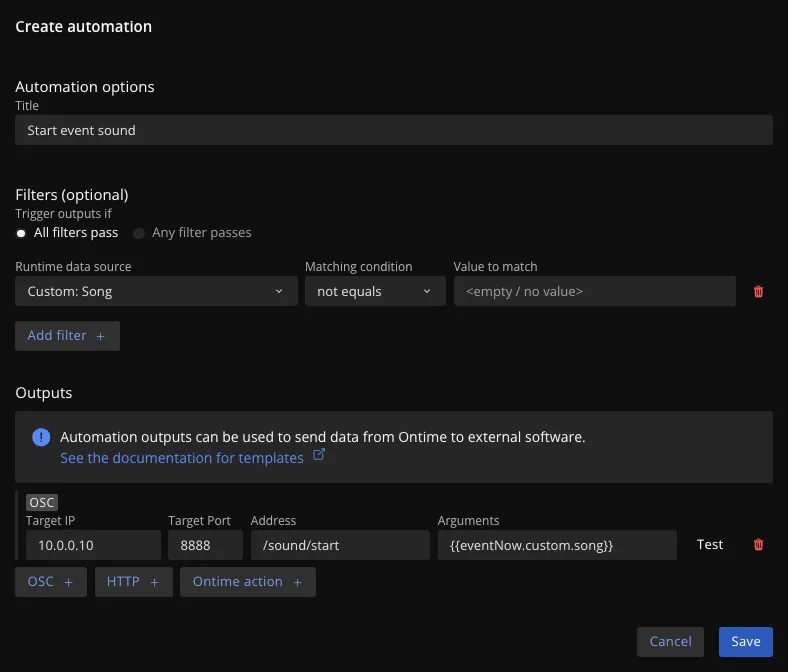 In the image example, we check if a custom field contains data (ie: is not empty), and if so, send an OSC message with its value.
Manage triggers
Section titled “Manage triggers”Triggers associate the automation with the Ontime event lifecycle.
We can describe, what action in Ontime should trigger which automation.
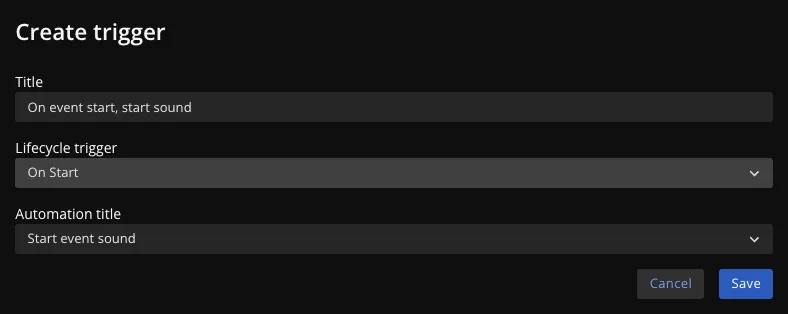 In the image example, we build on the previous automation to say: “when Ontime starts an event, trigger the automation that starts the sound”.
The Ontime lifecycle
Section titled “The Ontime lifecycle”While running your event, Ontime will go through a few lifecycle events.
The automation feature allows you to request a message once that happens.
| Event | Description |
|---|---|
On Load |
Triggered when an event is loaded |
On Start |
Triggered when an event starts |
On Pause |
Triggered when an event is paused |
On Stop |
Triggered when playback is stopped |
On Every Second |
Triggered once a second |
On Update |
Triggered once a second, as long as a timer is running |
On Finish |
Triggered when a timer passes the 0 mark |
Using variables in automation
Section titled “Using variables in automation”You can embed data from the application runtime in the message using templates /your-message/{{ontime-data}} {{ontime-more-data}}
This means that any of the data described in the Runtime Data can be sent as part of the message payload.
When the lifecycle event is triggered, Ontime places the updated piece of data in place of the template.
Finding variables
Section titled “Finding variables”The entire Runtime Data object is available in integrations using the above templates.
However, it can be challenging to find the correct structure of the key.
You can see below a table with all the current keys available, this is likely to change as we develop Ontime and could get out-of-date.
Continue reading here for how to find the variables yourself.
Keep in mind that your custom fields will be added to the list.
You can find the appropriate key in the Custom Fields panel.
Runtime data
Section titled “Runtime data”Note that this is just an example and it might run out of sync Follow the steps above to find this for yourself
| Variable | Description |
|---|---|
clock |
Current clock value in milliseconds |
timer.addedTime |
Additional time added to the timer in milliseconds |
timer.current |
Current timer value in milliseconds |
timer.duration |
Total duration of the timer in milliseconds |
timer.elapsed |
Elapsed time in milliseconds |
timer.expectedFinish |
Expected finish time in milliseconds |
timer.finishedAt |
Time when the timer finished (null if not finished) |
timer.phase |
Current phase of the timer |
timer.playback |
Playback state of the timer |
timer.secondaryTimer |
Secondary timer value (null if not used) |
timer.startedAt |
Time when the timer started in milliseconds |
onAir |
Boolean indicating whether the playback is active |
runtime.selectedEventIndex |
Index of the selected event |
runtime.numEvents |
Number of events |
runtime.offset |
Offset time in milliseconds |
runtime.plannedStart |
Planned start time in milliseconds |
runtime.plannedEnd |
Planned end time in milliseconds |
runtime.actualStart |
Actual start time in milliseconds |
runtime.expectedEnd |
Expected end time in milliseconds |
eventNow.id |
ID of the current event |
eventNow.type |
Type of the current event |
eventNow.title |
Title of the current event |
eventNow.timeStart |
Start time of the current event in milliseconds |
eventNow.timeEnd |
End time of the current event in milliseconds |
eventNow.duration |
Duration of the current event in milliseconds |
eventNow.timeStrategy |
Time strategy of the current event |
eventNow.linkStart |
Link start time of the current event (null if not used) |
eventNow.endAction |
End action of the current event |
eventNow.timerType |
Timer type of the current event |
eventNow.skip |
Boolean indicating if the current event is skipped |
eventNow.note |
Note for the current event |
eventNow.colour |
Colour code for the current event |
eventNow.cue |
Cue for the current event |
eventNow.revision |
Revision number of the current event |
eventNow.timeWarning |
Warning time for the current event in milliseconds |
eventNow.timeDanger |
Danger time for the current event in milliseconds |
eventNow.custom.song |
Custom field: song for the current event |
eventNow.custom.artist |
Custom field: artist for the current event |
currentBlock.block |
Current block (null if not used) |
currentBlock.startedAt |
Start time of the current block (null if not used) |
eventNext.id |
ID of the next event |
eventNext.type |
Type of the next event |
eventNext.title |
Title of the next event |
eventNext.timeStart |
Start time of the next event in milliseconds |
eventNext.timeEnd |
End time of the next event in milliseconds |
eventNext.duration |
Duration of the next event in milliseconds |
eventNext.timeStrategy |
Time strategy of the next event |
eventNext.linkStart |
Link start time of the next event (null if not used) |
eventNext.endAction |
End action of the next event |
eventNext.timerType |
Timer type of the next event |
eventNext.skip |
Boolean indicating if the next event is skipped |
eventNext.note |
Note for the next event |
eventNext.colour |
Colour code for the next event |
eventNext.cue |
Cue for the next event |
eventNext.revision |
Revision number of the next event |
eventNext.timeWarning |
Warning time for the next event in milliseconds |
eventNext.timeDanger |
Danger time for the next event in milliseconds |
eventNext.custom.song |
Custom field: song for the next event |
eventNext.custom.artist |
Custom field: artist for the next event |
eventNext.delay |
Delay for the next event in milliseconds |
auxtimer1.duration |
Duration of the auxiliary timer in milliseconds |
auxtimer1.current |
Current value of the auxiliary timer in milliseconds |
auxtimer1.playback |
Playback state of the auxiliary timer |
auxtimer1.direction |
Direction of the auxiliary timer |
Human readable data
Section titled “Human readable data”The above data defined in runtime data will give you the data from Ontime as consumed in-app.
For example, all times are in milliseconds.
This is great for software-to-software communications, but it might not be ideal if you want to consume the data yourself.
For these use cases, we have defined a small list of human-readable timer values you can use in your integration messages.
The usage would look like
| Variable | Usage | Result |
|---|---|---|
human.clock |
{{human.clock}} |
Current clock in hh:mm:ss |
human.duration |
{{human.duration}} |
Duration of current timer in hh:mm:ss* |
human.expectedEnd |
{{human.expectedEnd}} |
Time at which the current event is expected to finish in hh:mm:ss* |
human.runningTimer |
{{human.runningTimer}} |
Current running timer in hh:mm:ss* |
human.elapsedTime |
{{human.elapsedTime}} |
Elapsed time of current timer in hh:mm:ss* |
human.startedAt |
{{human.startedAt}} |
Time when the current time started hh:mm:ss* |